Free Online Screen Recorder: How to Record Your Screen With Audio (No Installation Required)
Learn how to use a free online screen recorder to record your full screen, a single window or a browser tab with audio, without installing software. Includes step-by-step instructions, audio tips and fixes for common problems.
By DailyOnWeb TeamPublished 7 min read
Whether you want to teach a lesson, report a bug, save a video call or show a customer how something works, a short video is often clearer than a long explanation. The easiest way to make one is with a free online screen recorder. It runs in your browser, so there is nothing to download, no account to create and no heavy software to learn.
This guide explains how an online screen recorder works, how to record your screen with sound step by step, how to get a clean result and what to do if something goes wrong.
What is an online screen recorder?
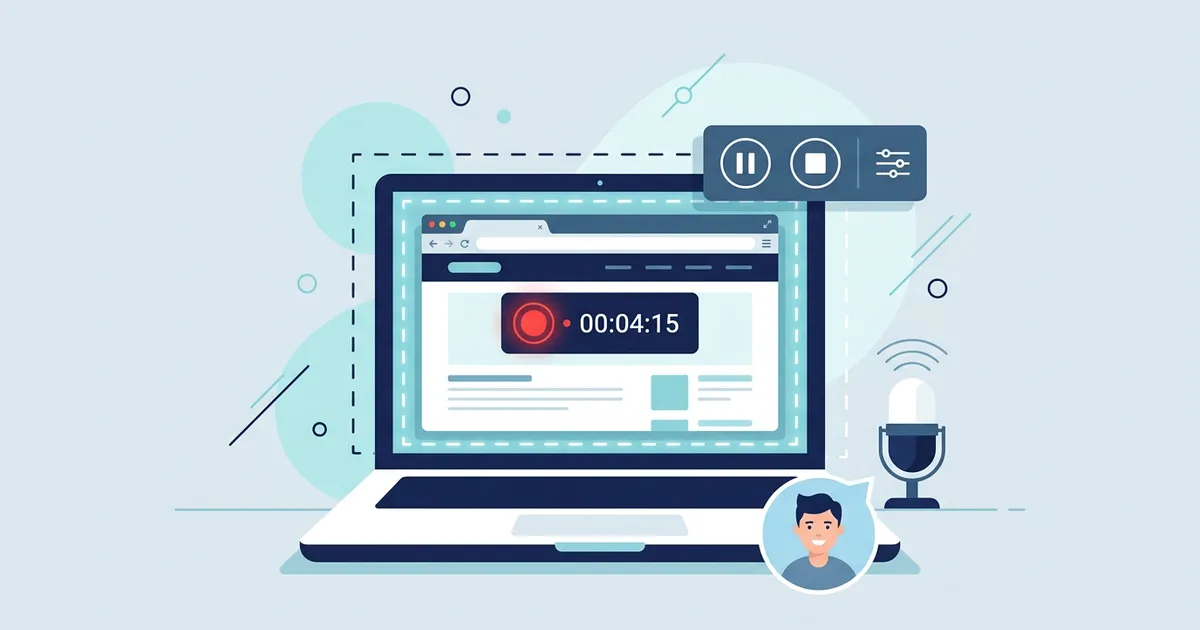
A screen recorder captures what is shown on your display and saves it as a video file. An online screen recorder does this inside your web browser using the screen sharing feature that modern browsers already include. When you press record, the browser asks which part of your screen to share. Only the part you choose is recorded, and you decide whether to add sound from your microphone or from the tab you are sharing.
Because it needs no installation, it works on Windows, Mac, Linux and Chromebook, and it is a handy choice on a work computer where you cannot install new programs.
When should you record your screen?
Screen recording is useful for many everyday jobs:
Tutorials and training: show a process once instead of explaining it many times.
Support and bug reports: let a developer see exactly what happened and in which order.
Online classes and presentations: save a lesson or a slide show with your voice.
Meetings and webinars: keep a copy for people who could not attend, with permission from the participants.
Product demos and walkthroughs: show a website or an app to a client or a teammate.
How to record your screen with audio, step by step
Open the screen recorder in a current version of Chrome, Edge, Firefox or another modern browser and follow these steps:
Close apps and tabs you do not want to show, and turn off notifications so private messages do not pop up.
Choose whether to record sound from your microphone, from the shared tab or both.
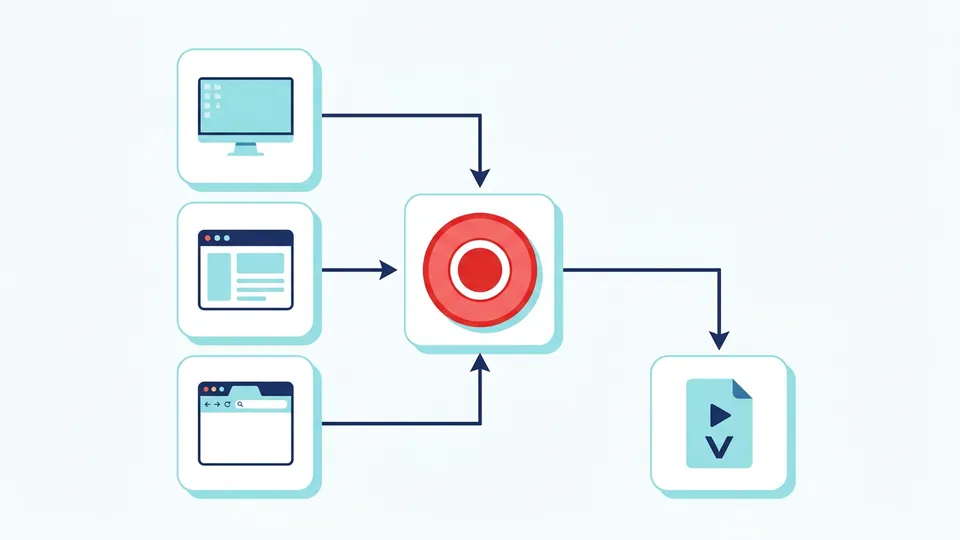
Press the record button and pick what to share: your entire screen, one application window or one browser tab.
Allow the browser to share, wait for the short countdown if there is one, and start your demo or lesson.
Press stop when you are finished, preview the video and download it to your device.
You can record the entire screen, a single window or just one browser tab, then download the video.
Full screen, window or tab: which should you pick?
Option
Best for
Good to know
Entire screen
Demos that switch between several apps
Everything on screen is recorded, so close private windows first.
Application window
Showing one program, such as a design tool or a spreadsheet
Other windows stay out of the video, even if they open on top.
Browser tab
Website walkthroughs and videos with tab sound
Can capture the sound that the tab plays, which is the cleanest way to save a presentation.
How to get clear sound in your recording
Viewers forgive a small mistake on screen, but they quickly stop watching a video with bad sound. A few simple habits make a big difference:
Use a headset or a USB microphone instead of the built in laptop microphone when you can.
Record in a quiet room and keep the microphone about a hand width from your mouth.
Do a ten second test recording and listen to it before you start the real one.
Mute music and chat apps so only the sound you want is recorded.
Write a short script or a list of points. The Online Notepad is a quick place to keep notes in another tab or on your phone.
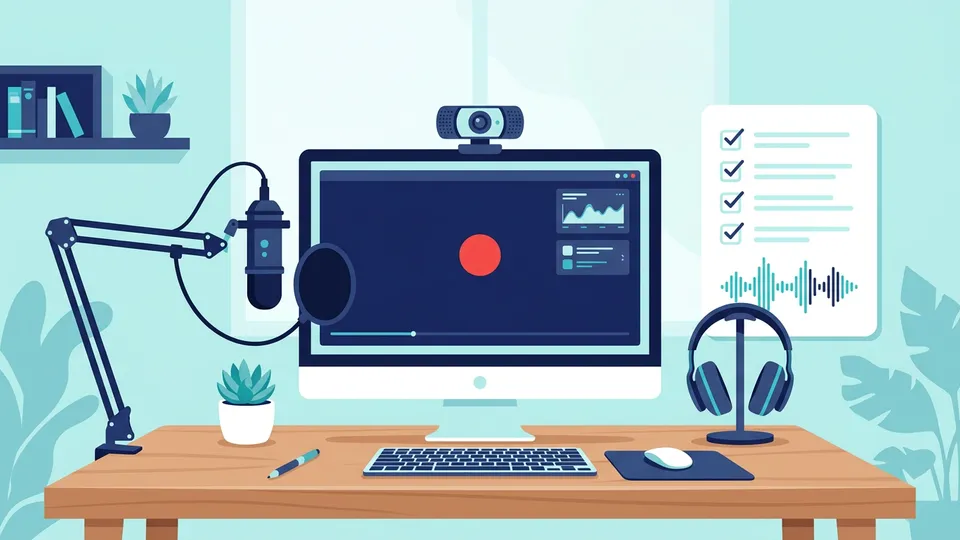
A quiet room, a decent microphone and a short checklist improve a recording more than any setting.
Tips for a clean, professional screen recording
Set a clear goal. One video should answer one question. Short videos of two to five minutes are watched to the end more often.
Clean your desktop. Hide personal files, bookmarks and notifications before you press record.
Use a larger zoom level. Raise the browser zoom to 125 percent or more so text is readable on a phone.
Move the mouse slowly. Point to what you describe and pause before you click.
Record in parts. It is easier to redo a short section than one long take.
Name your files. Use a clear name such as invoice-tutorial-2026-11.webm so you can find it later.
Screen recording vs screen capture
A screen recording makes a video with movement and sound. A screenshot is a single still picture. If you only need to show one screen, a picture is faster to make and easier to share. Use Screen Capture to save a screenshot of your screen or a single window, and use the screen recorder when the steps and the order matter. Many good tutorials use both: a video for the full process and a few screenshots for the key moments.
What to do with your recording afterwards
Browser based recorders usually save the video in the WebM format, which plays in most modern browsers and in many video players. Before you publish it:
Watch it once from start to finish and check that the sound is clear.
Make sure no passwords, emails or private data are visible.
Upload it to your website, learning platform or video service, or send the file or a link to your team.
For a short looping preview in a web page, create a lightweight animated image with the GIF to WebP converter.
You can find more free helpers for media, text and the web on the utility tools page.
Fix common screen recording problems
No sound in the video: check that the microphone is allowed in the browser, that the right input is selected in your system settings and that the tab or window sound option was turned on when you started sharing.
The share window does not appear: use an up to date browser and check that screen sharing is not blocked by your browser or by a work policy.
Choppy video: close heavy apps and extra tabs, and record a window or tab instead of a large screen.
The file is large: record shorter parts, lower your screen resolution before you start or share a single tab instead of the full screen.
Mac records no system sound: browsers on Mac often share sound only from a browser tab. Record the tab that plays the audio.
Privacy and permission
A browser based recorder works on your device, and the browser always asks before it shares your screen or microphone. Even so, be careful about what you record. Tell people before you record a meeting, do not capture other people's private information and respect the rules of your school or company.
Conclusion
A free screen recorder in your browser is the fastest way to turn an explanation into a clear video. Choose the screen, window or tab, check your sound, keep the video short and review it before you share it. Open the online screen recorder now to make your first recording, and use Screen Capture whenever a single screenshot is enough.
Is there a free online screen recorder that needs no download?
Yes. The DailyOnWeb Screen Recorder runs in your browser, so you can record your screen, a window or a tab for free without installing software or creating an account.
How do I record my screen with audio?
Open the screen recorder, choose whether to include microphone sound or tab sound, press record and select what to share. When you stop, preview the video and download it. Do a short test first to check the sound.
Can I record only one browser tab or window?
Yes. When the browser asks what to share, pick Entire Screen, Window or Tab. Recording a single window or tab keeps other apps and notifications out of the video.
Why is there no sound in my screen recording?
Usually the microphone permission is blocked, the wrong input device is selected or the option to share tab or system audio was not ticked. Allow the microphone in the browser, choose the correct input and try a short test recording.
What is the difference between screen recording and a screenshot?
A screen recording is a video that captures movement and sound over time. A screenshot is one still image. Use Screen Capture for a single picture and the screen recorder when you need to show steps in order.
Is it safe to use an online screen recorder?
Browsers always ask for your permission before they share your screen or microphone, and you choose exactly what is shared. Close private windows first, avoid showing passwords and get permission before you record other people.
A practical guide to the most useful free online calculators: check your BMI, find your exact age, plan a loan, work out percentages and profit margin, estimate a due date and add up work hours.
A practical guide to the most useful free online PDF tools: merge and split files, shrink big PDFs for email, convert PDF to Word and protect documents with a password.
Learn which free online image tools to use to compress photos, resize and crop images, convert PNG and HEIC to WebP, remove backgrounds and keep your website fast.
6 min read
A
Welcome Back
Sign in to access exclusive deals and manage your bookings